March 12, 2026
Share
Copied
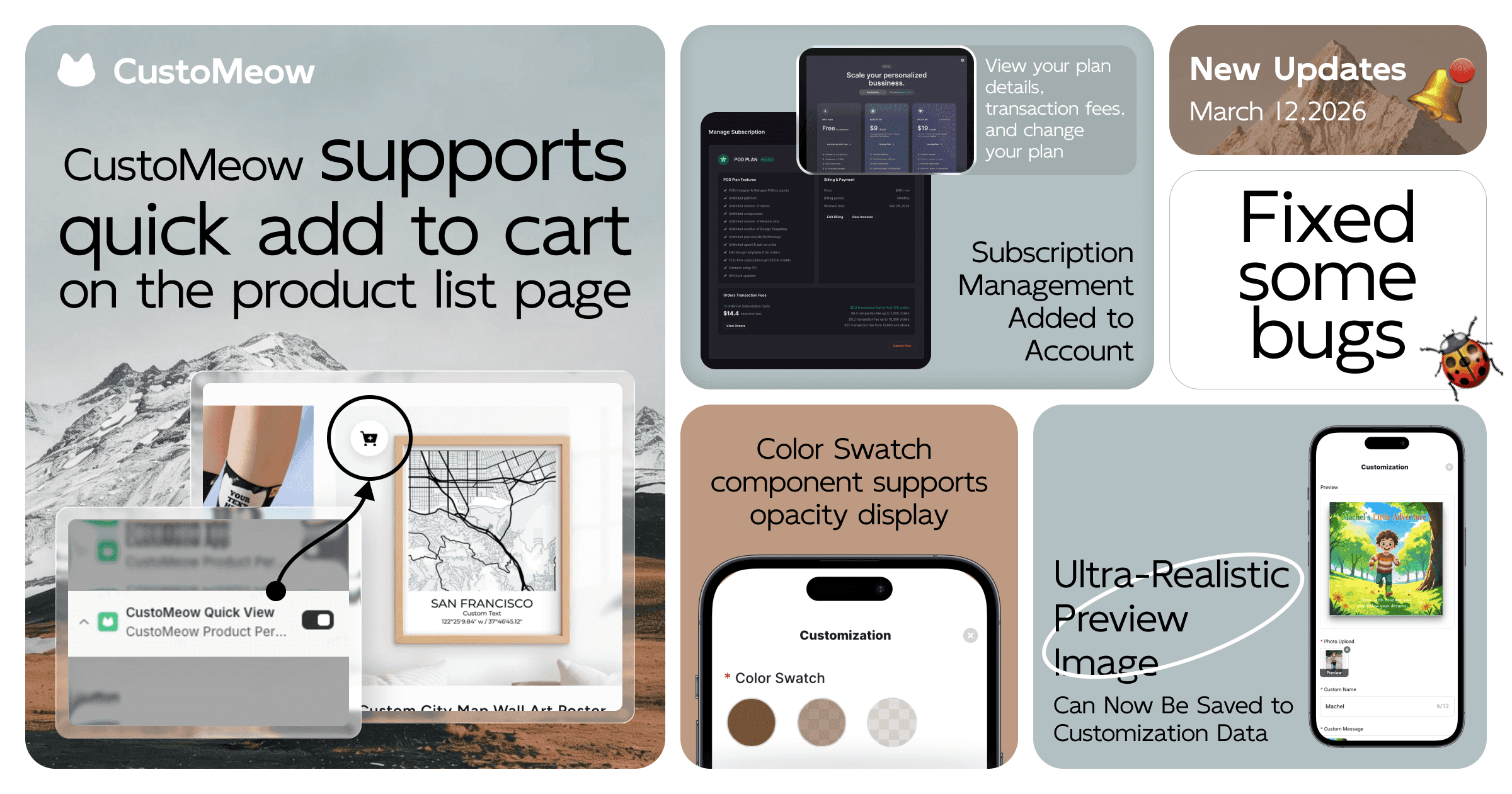
CustoMeow Supports Quick Add to Cart on the Product List Page
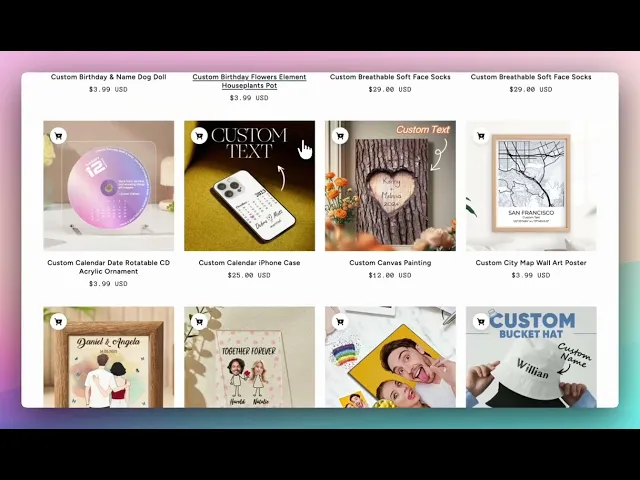
On the product list page, when users click the CustoMeow quick add to cart button, a product variant selection window will first pop up. After completing the customization, the product will be directly added to the cart.
This allows users to complete customization and add the product to the cart without entering the product detail page, reducing page jumps and improving the overall user experience.
How It Works?
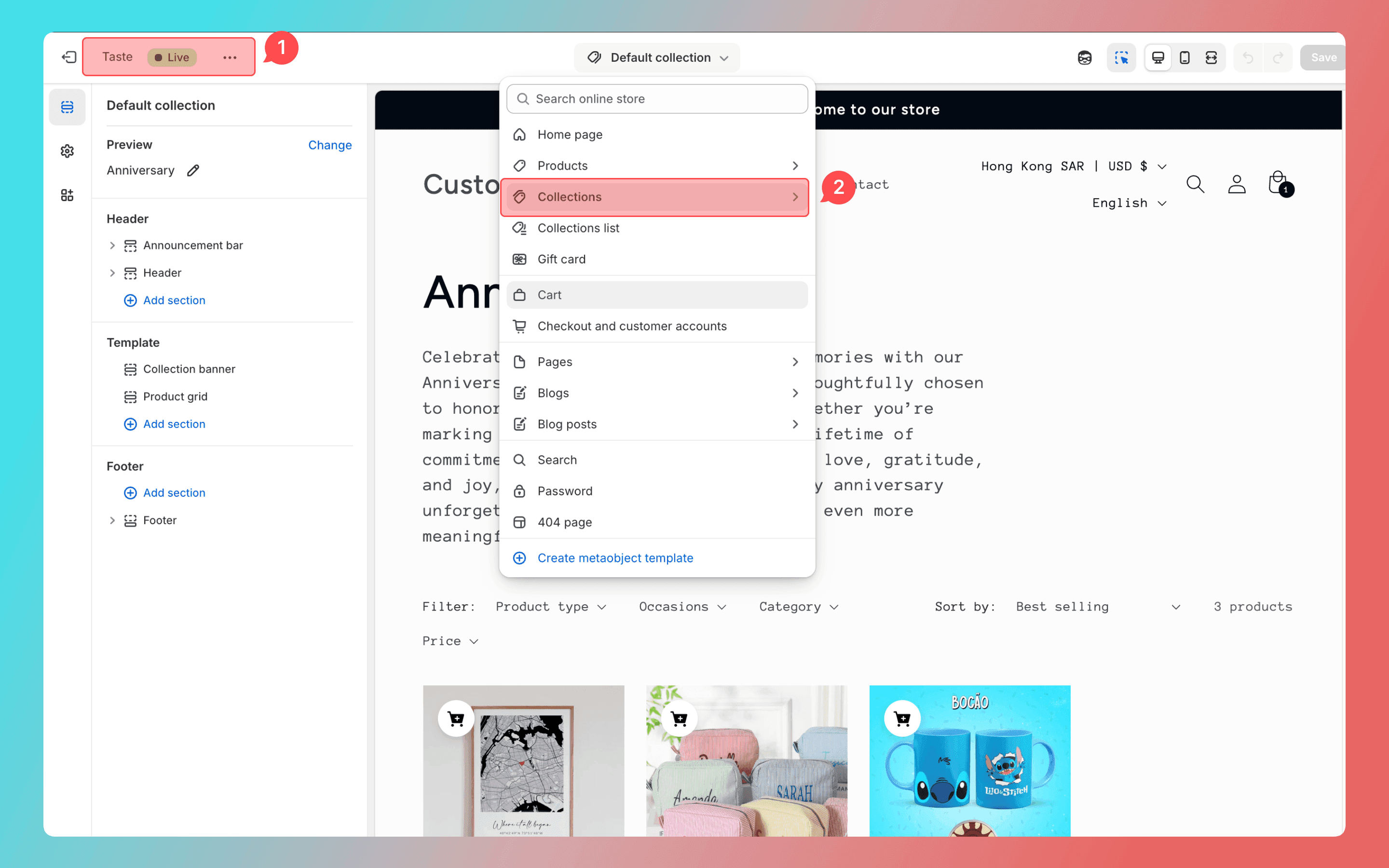
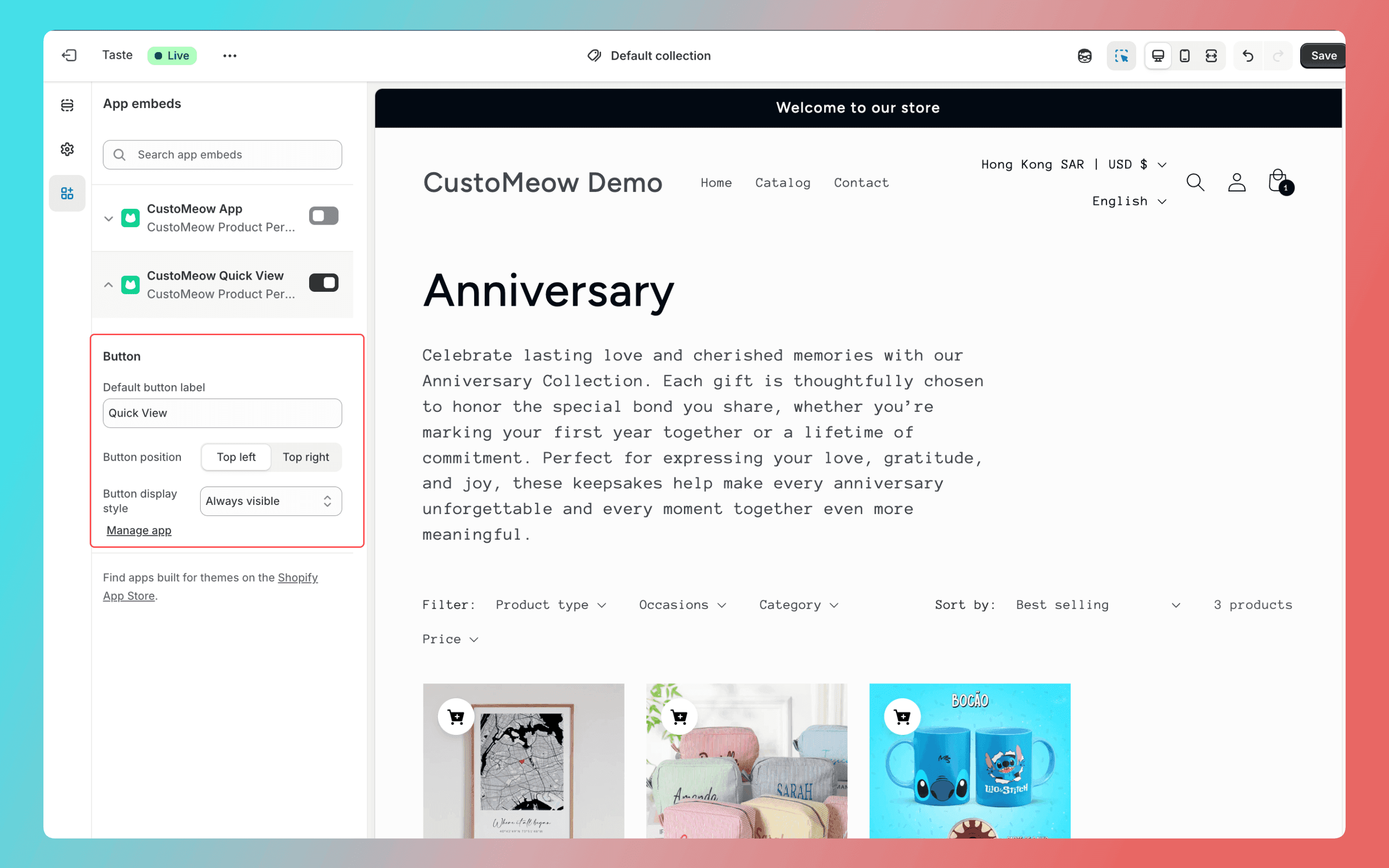
Go to the theme template currently in use and open the product list page.
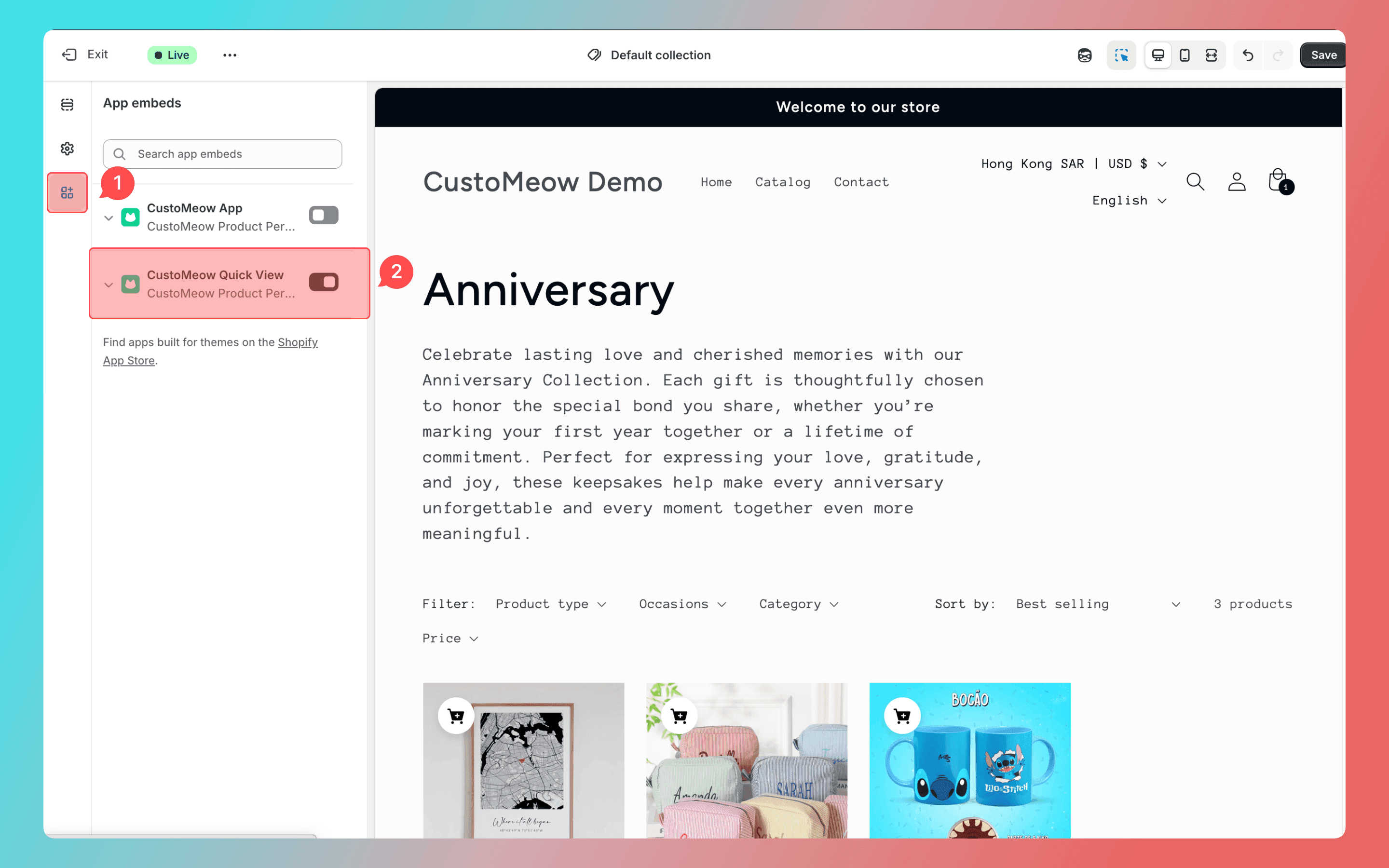
Enable the CustoMeow Quick View app embed.
Configure the app details. You can set the display position of the add to cart button on the product card, the display style, and the button text.
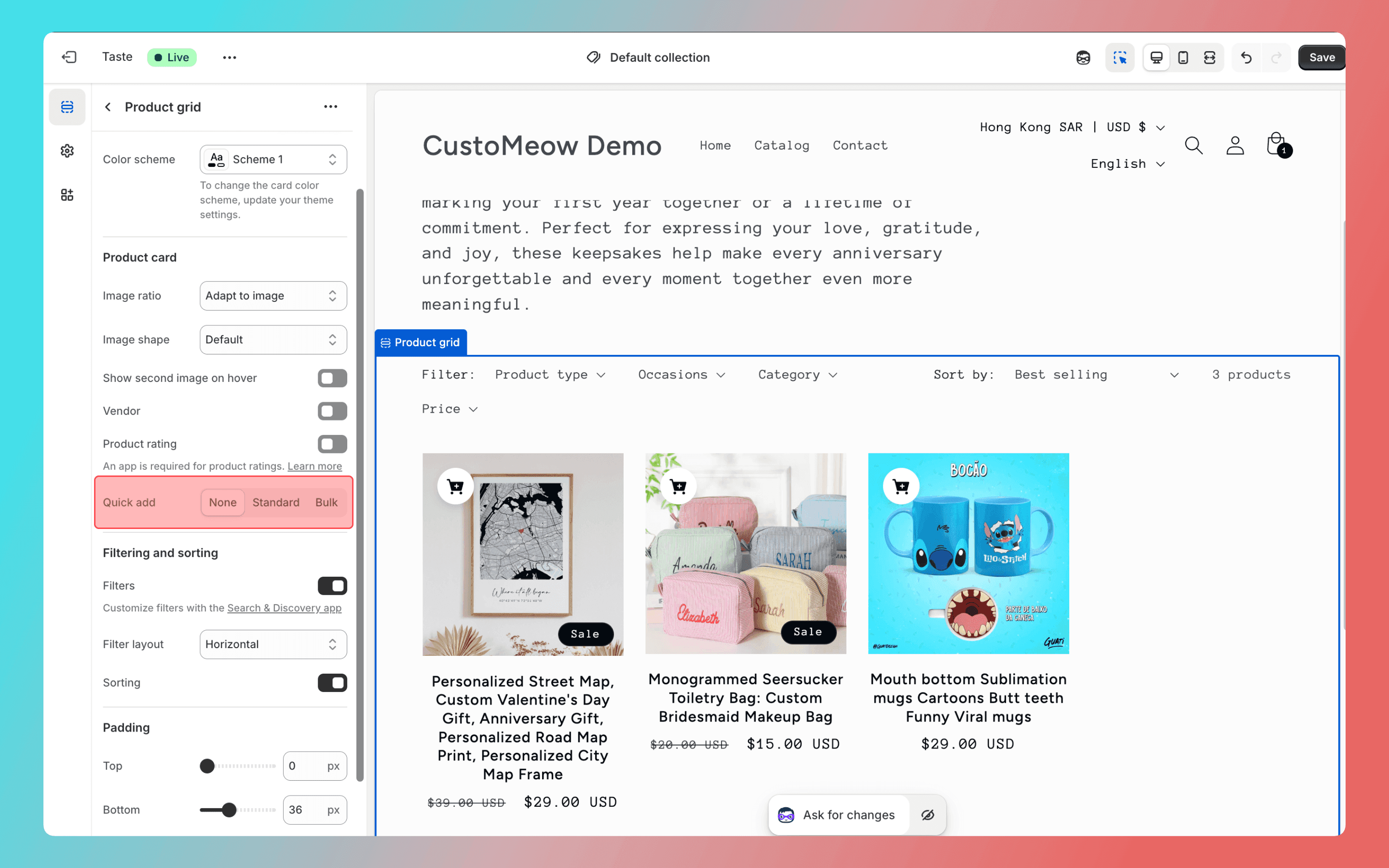
Hide the quick add to cart button built into the theme template to prevent users from skipping the customization process and adding products directly to the cart.
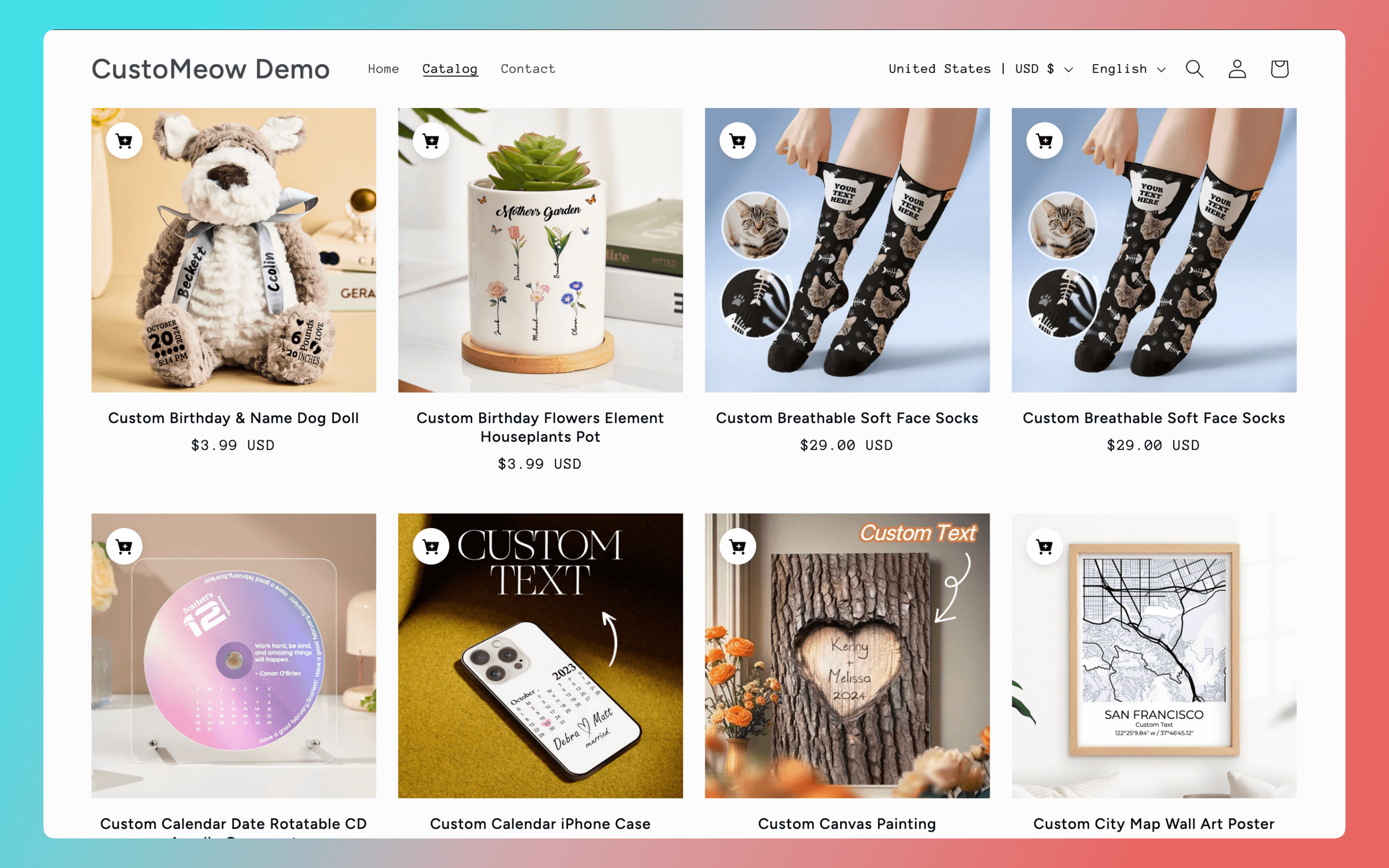
Finally, test the feature on the product list page.
More Notes
This update supports theme templates on two platforms: Shopify standard themes and Shopline 3.0 themes.
The product detail page must already load the customization feature through the CustoMeow block embed method. If the detail page does not have an embedded block, or if the customization feature is obtained through a button element, the customization feature cannot be called on the product list page.
The product list page must use the CustoMeow Quick View button. If the theme's built-in quick add to cart button or buttons from other plugins are used, compatibility issues may occur, and the customization feature may not load correctly.
Ultra-Realistic Preview Image Can Now Be Saved to Customization Data
Previously, images generated by the Ultra-Realistic Preview component could only be viewed if the user manually generated them. There was no way to force preview generation or save the preview images to the customization data. This update resolves that issue.

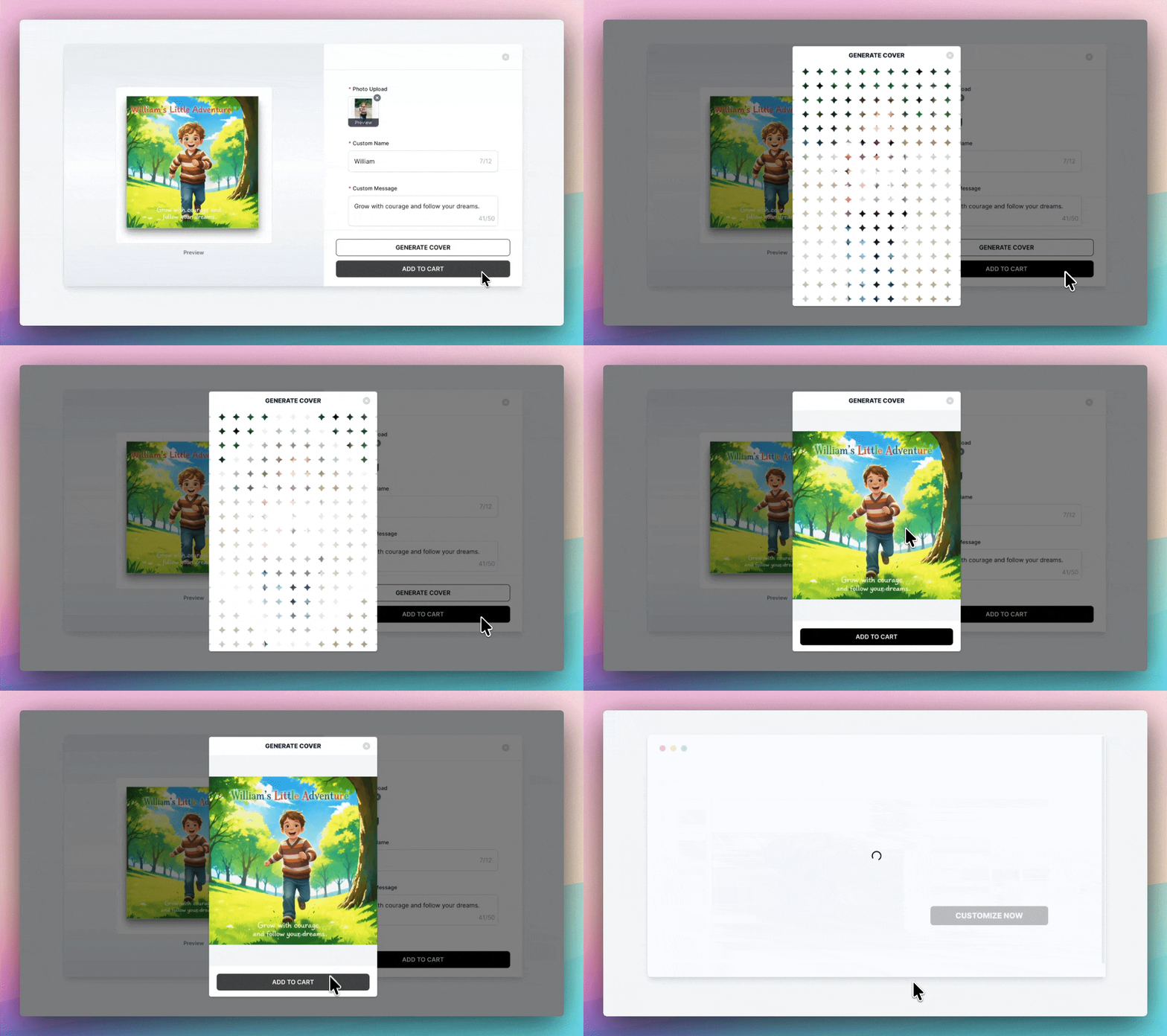
When configuring the Ultra-Realistic Preview component, enable Enable Forced Preview. The preview image will then be forcibly displayed and rendered to ensure it matches the customized content.
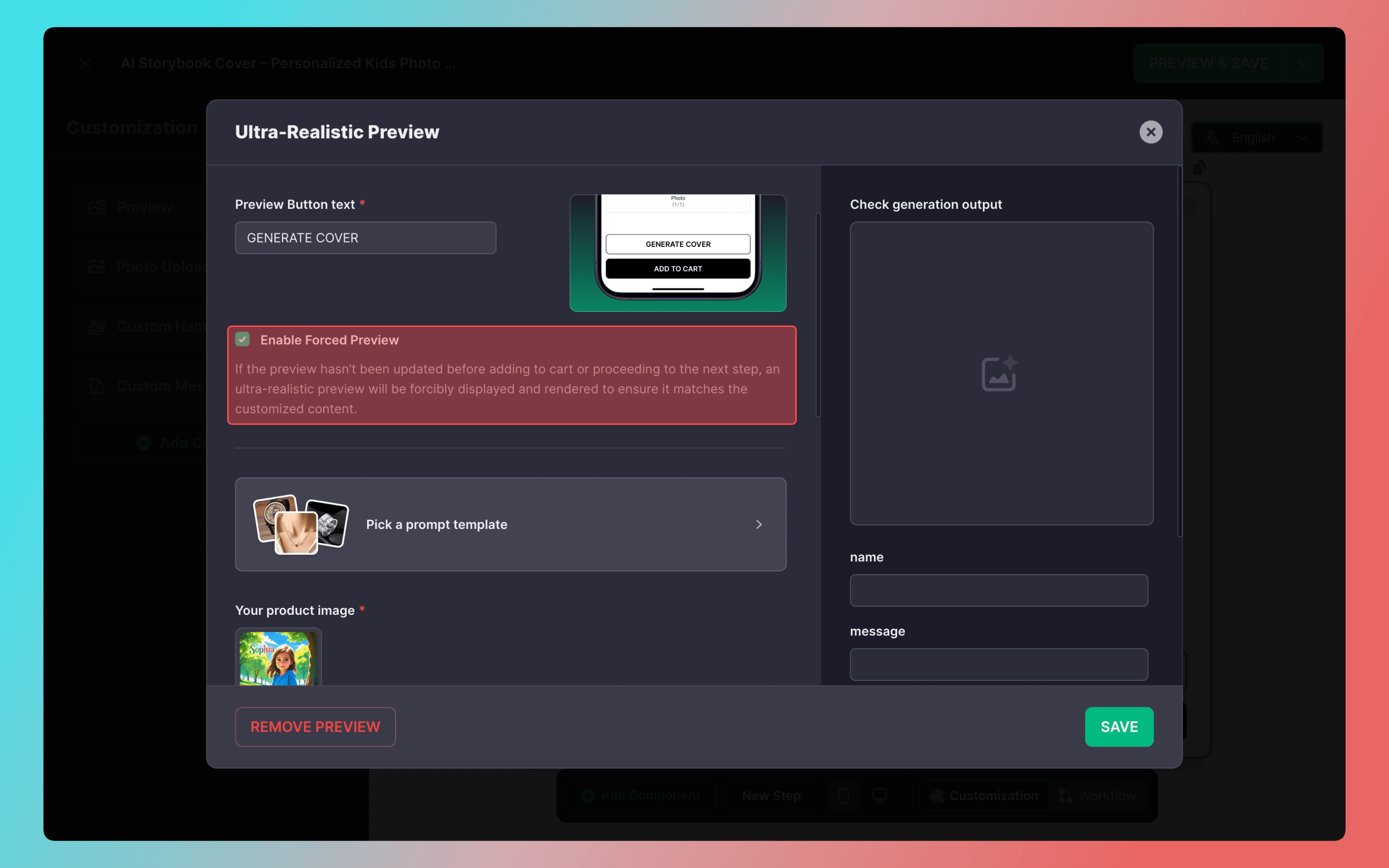
The Ultra-Realistic Preview component now includes an image output source, which can be connected to the template’s image receiver.
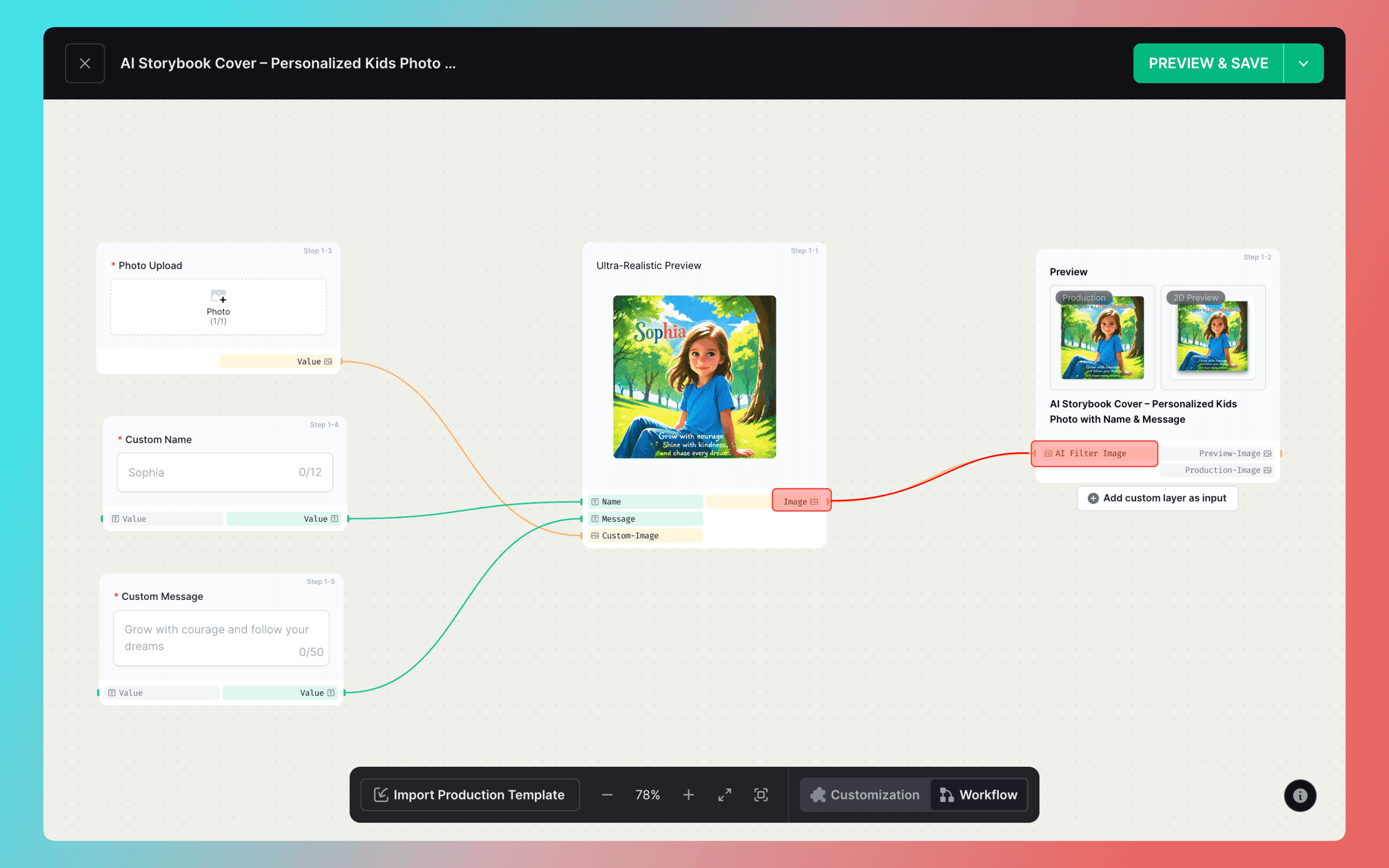
Once the user generates an Ultra-Realistic Preview image, it can be rendered directly in the template.
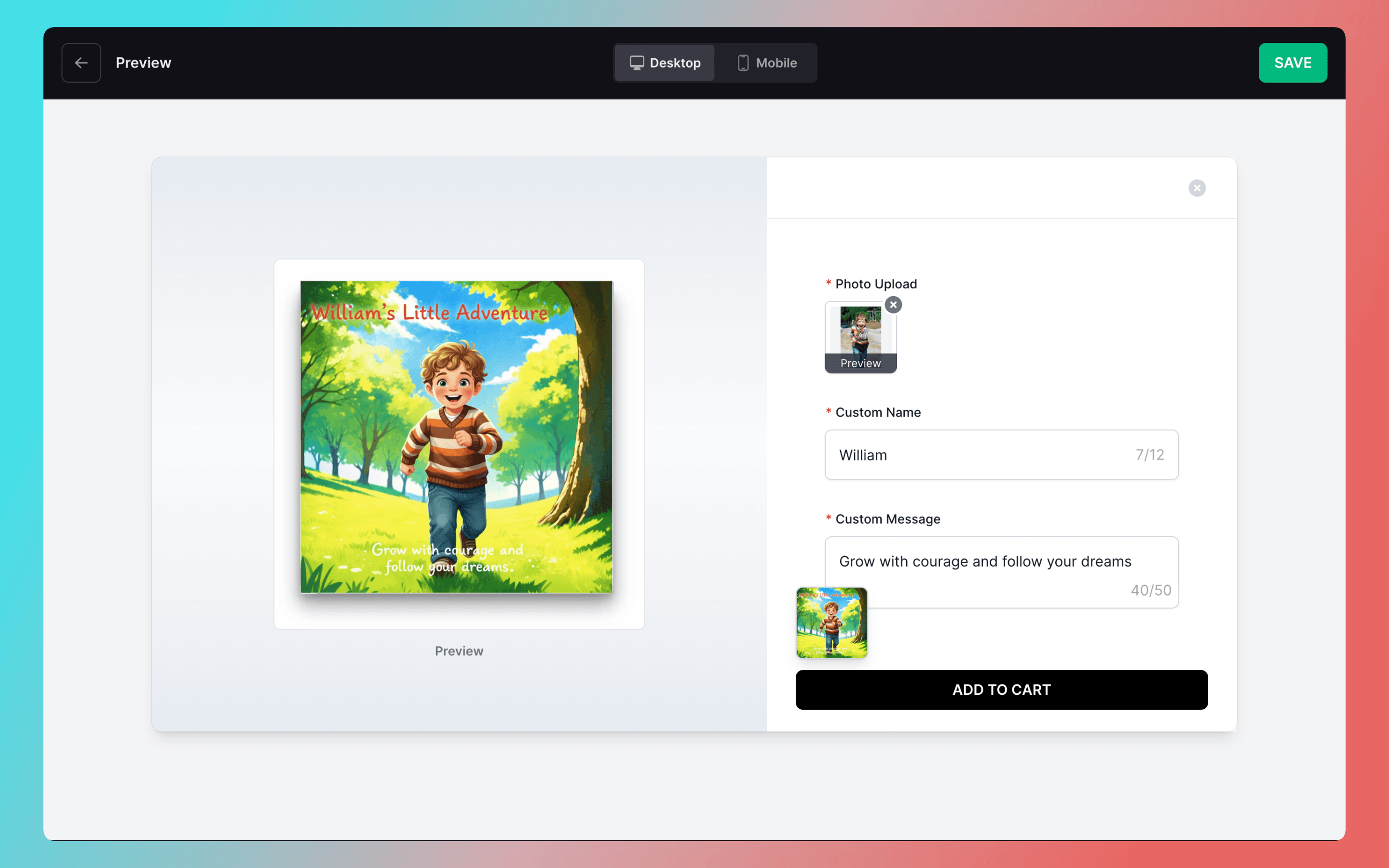
With Enable Forced Preview turned on, even if the user clicks “Add to Cart” directly, the preview image will be rendered first before the product is added to the cart.
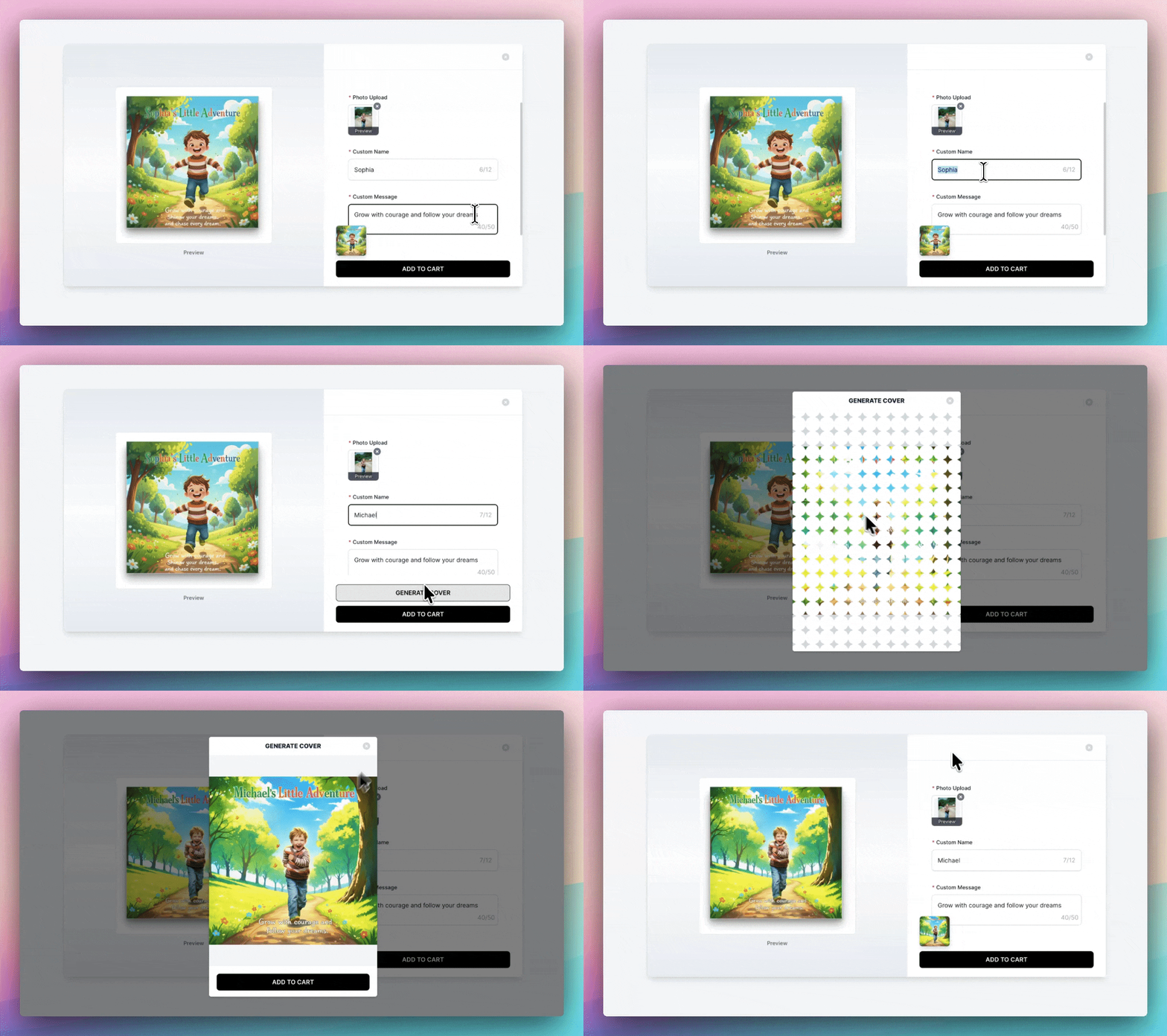
If the user changes the input values for the Ultra-Realistic Preview, the preview image will be cleared and re-generated to ensure the information and image remain consistent.
Subscription Management Added to Account
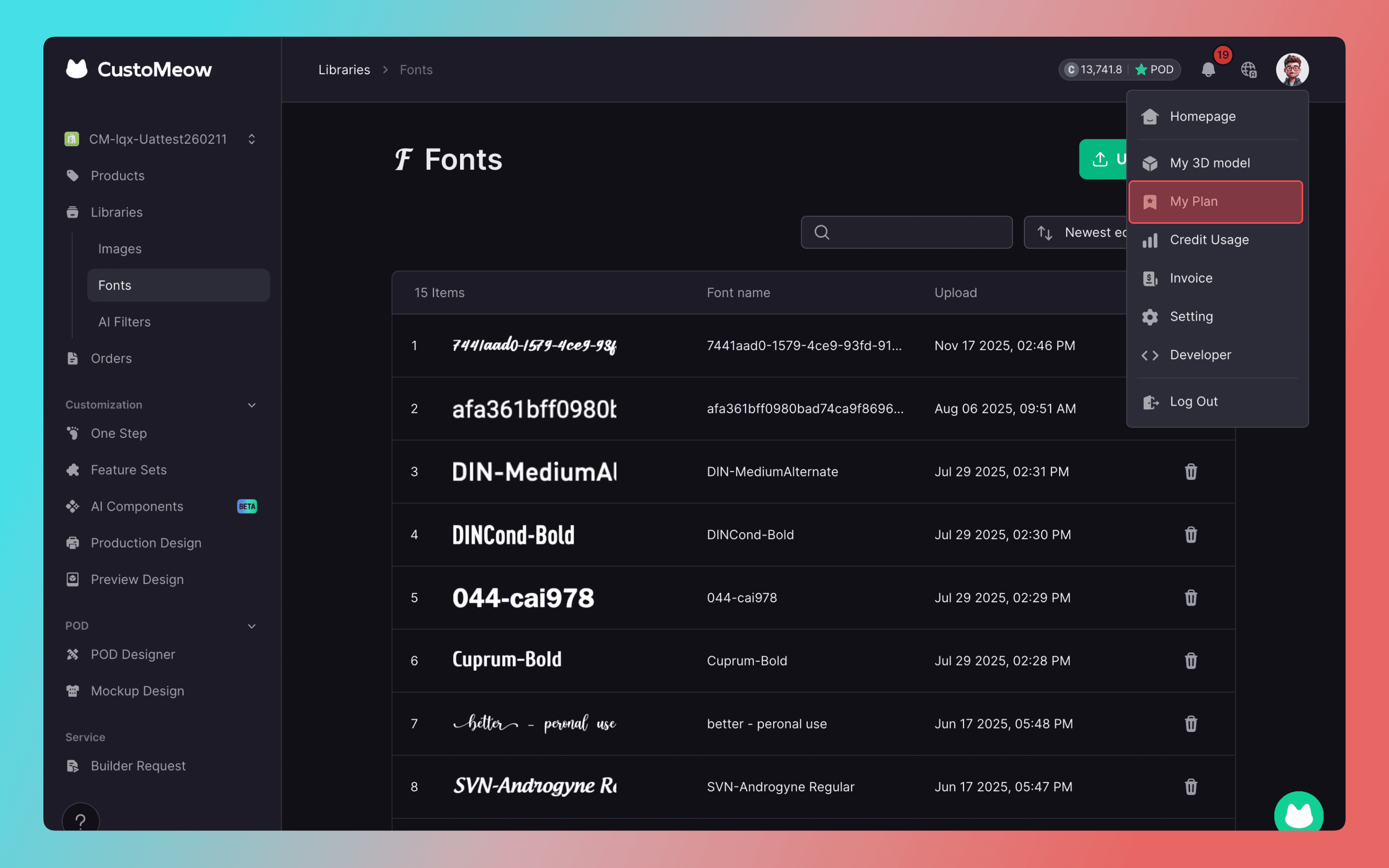
By clicking your avatar → My Plan, you can view your current subscription.
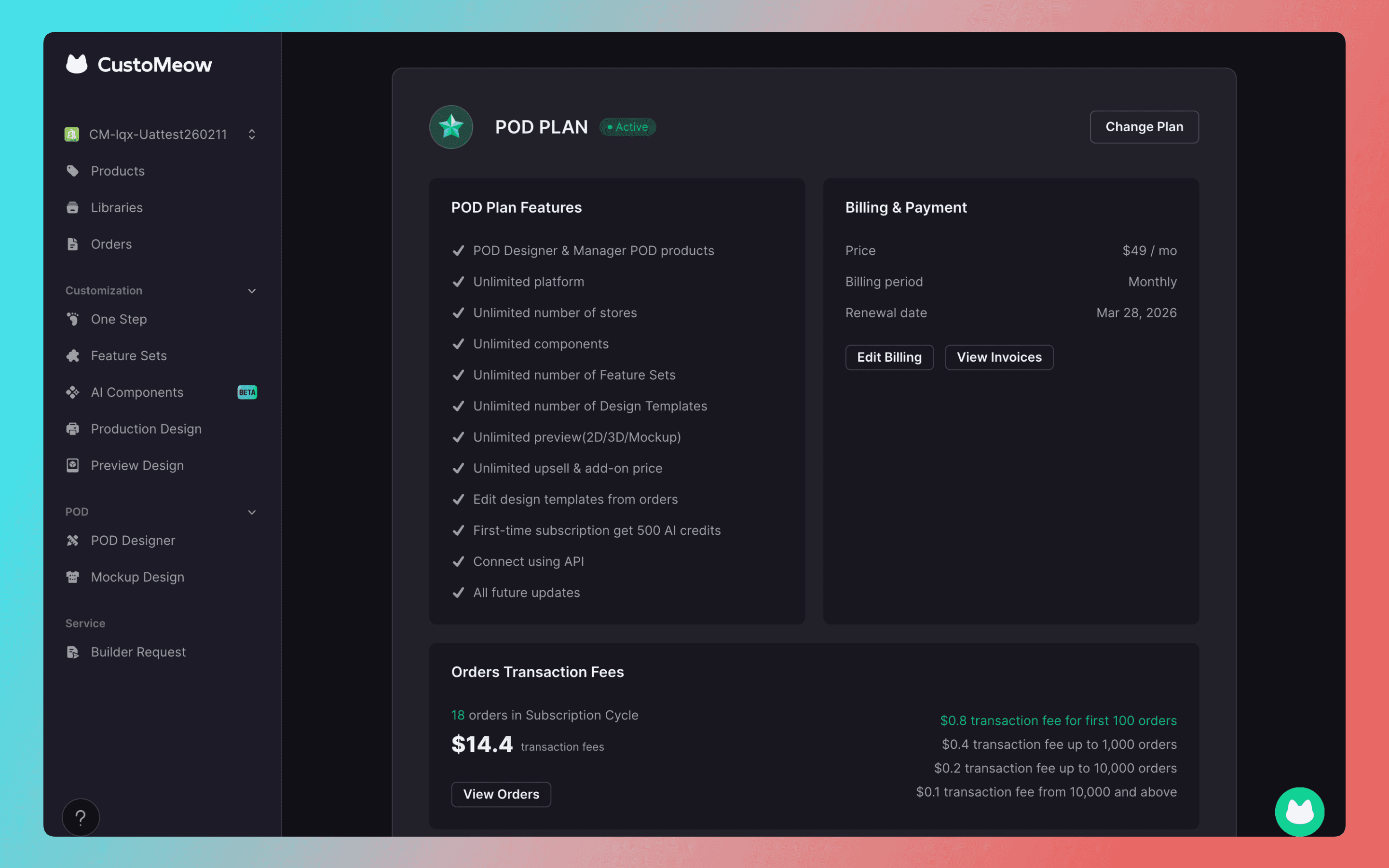
You can check your plan details, billing schedule, current order tier, and transaction fees.
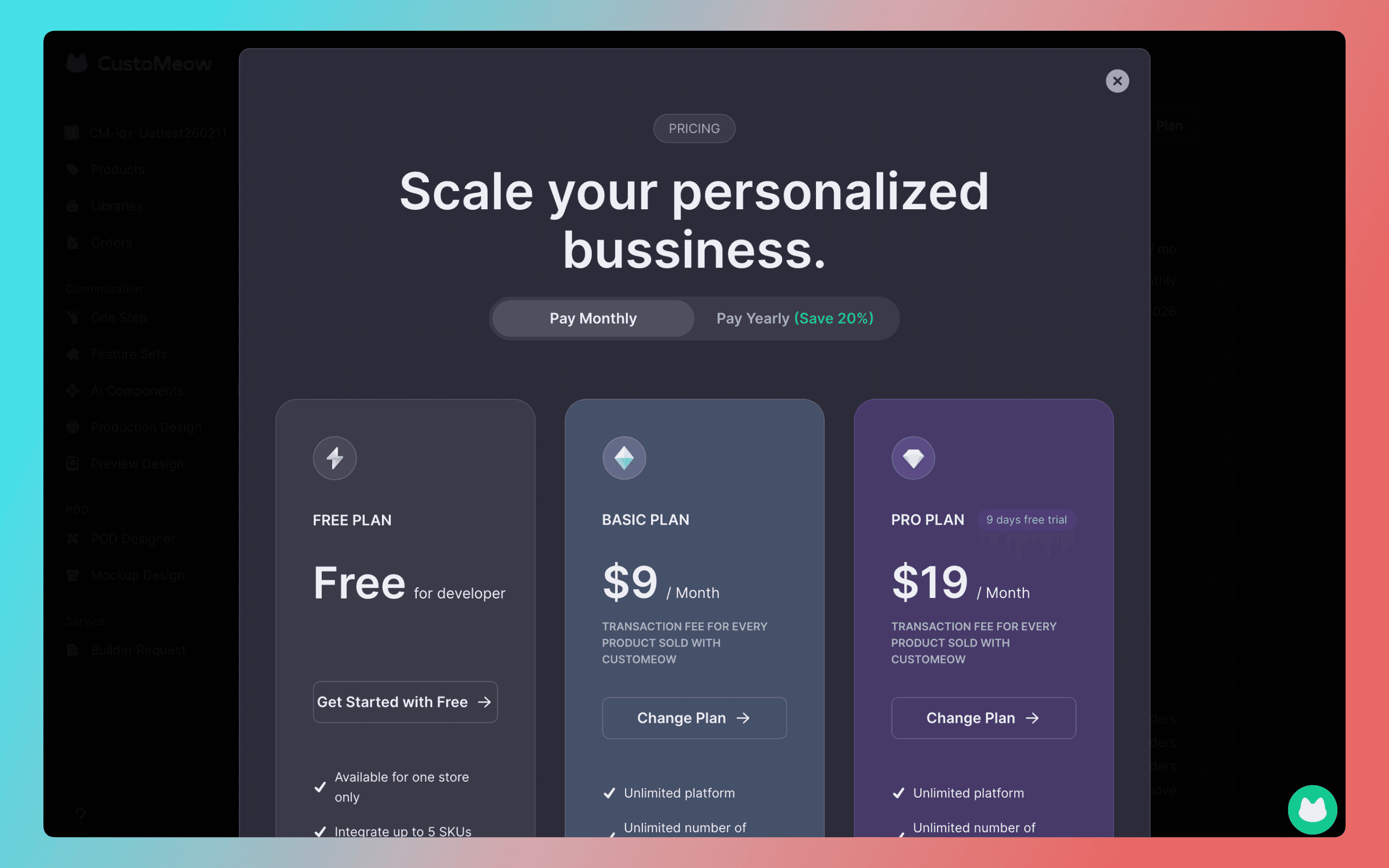
To change your subscription, click Change Plan and select a new plan.
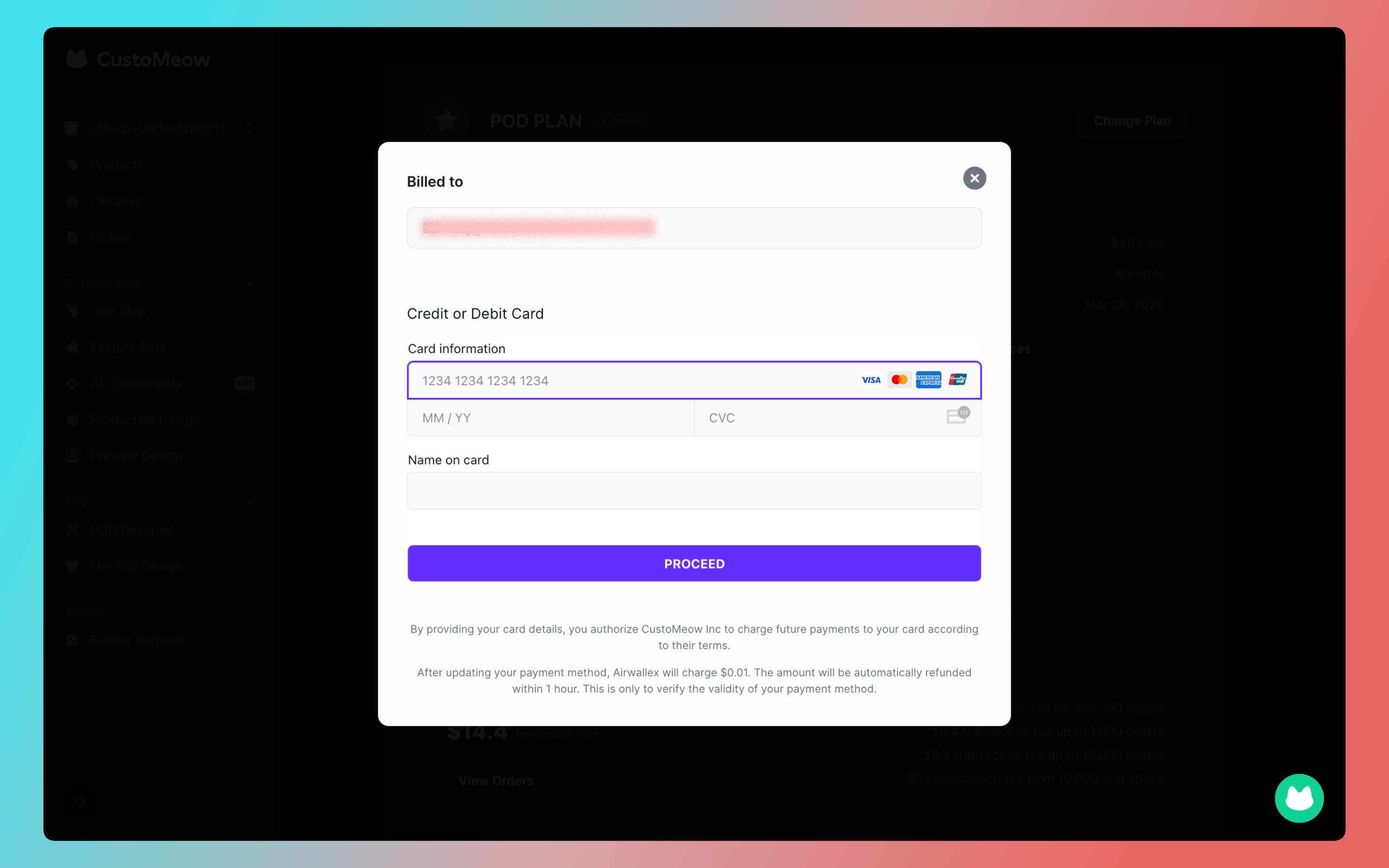
To update your linked credit card, click Edit Billing and enter the new card information.
More Updates
For products with price adjustment features, if a variant is deleted but the SKU still exists, CustoMeow will continue to retrieve the SKU’s price for the adjustment.
The Color Swatch component supports opacity display.
Fixed some bugs.

